

Workspaces, members and roles
What each role can do, how to change roles, transfer ownership and leave a workspace.
Roles
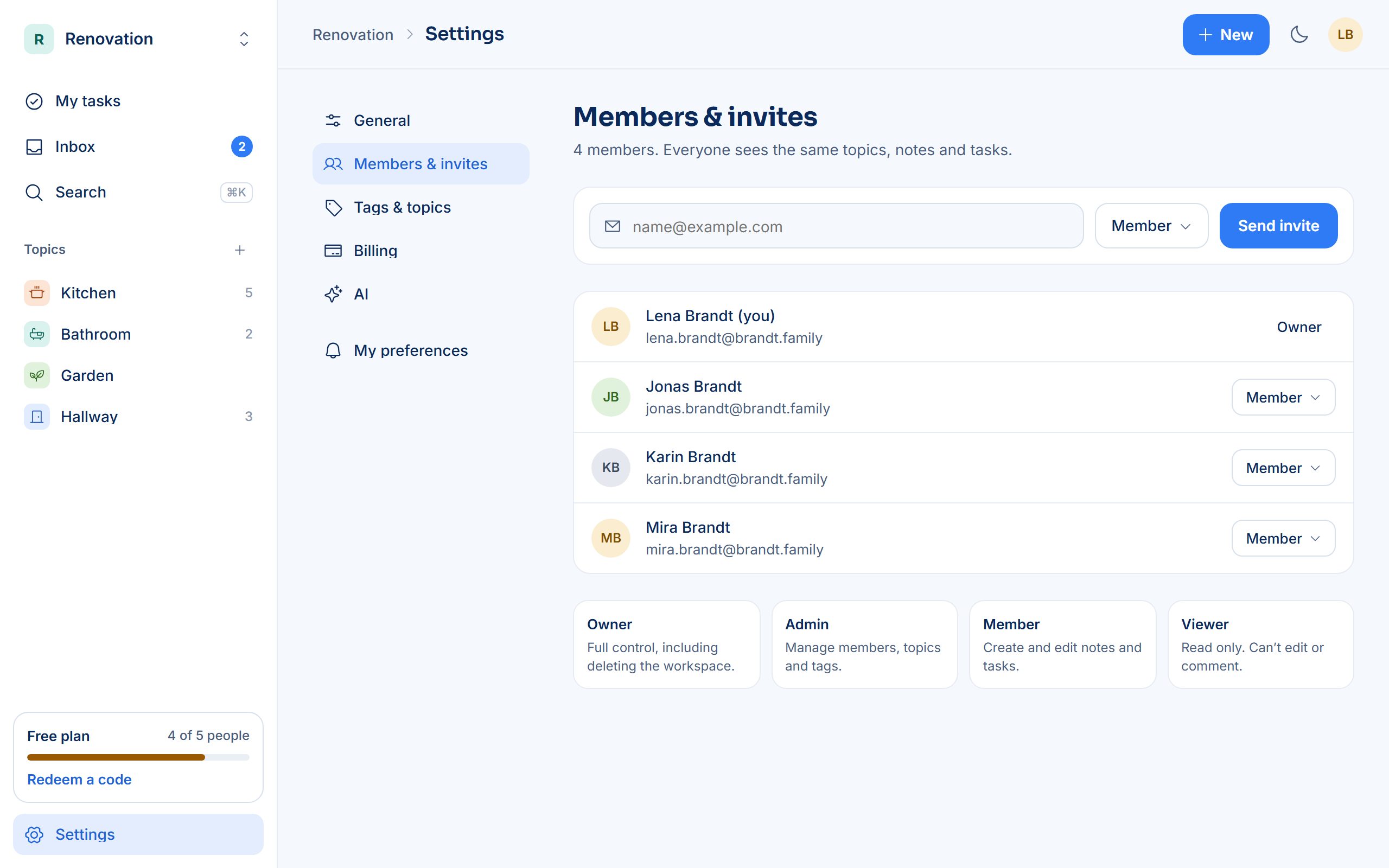
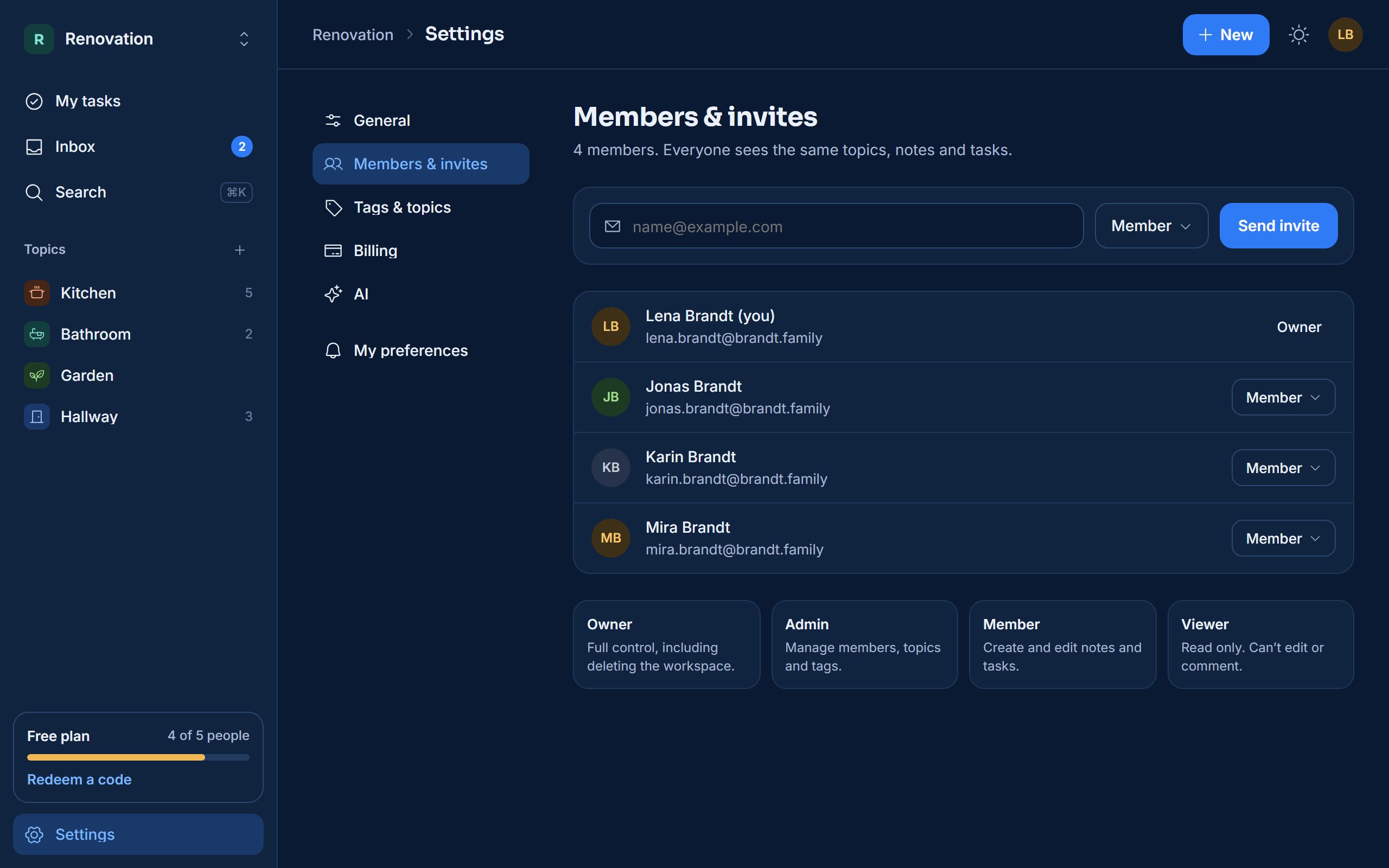
Every workspace has exactly one Owner. The Owner can delete the workspace, transfer ownership, manage billing and promo codes, invite and remove people and change roles.
Admins (Team and Business plans) can do everything the Owner can except delete the workspace or transfer it. Members create and edit notes and tasks, assign work and comment. Viewers (Team and Business) can read everything but change nothing.
Permissions are enforced on the server for every request, so the role you see in the app is the role that applies.
Change roles and remove people
Web app
- Open Settings › Members & invites in the workspace.
- Use the role menu next to a person to change their role, or Remove to take them out of the workspace. Their content stays in the workspace.
iPhone and Android
- Workspace tab › settings › Members. Owners and admins can tap a person to change their role or remove them.
Rename, transfer or leave
Web app
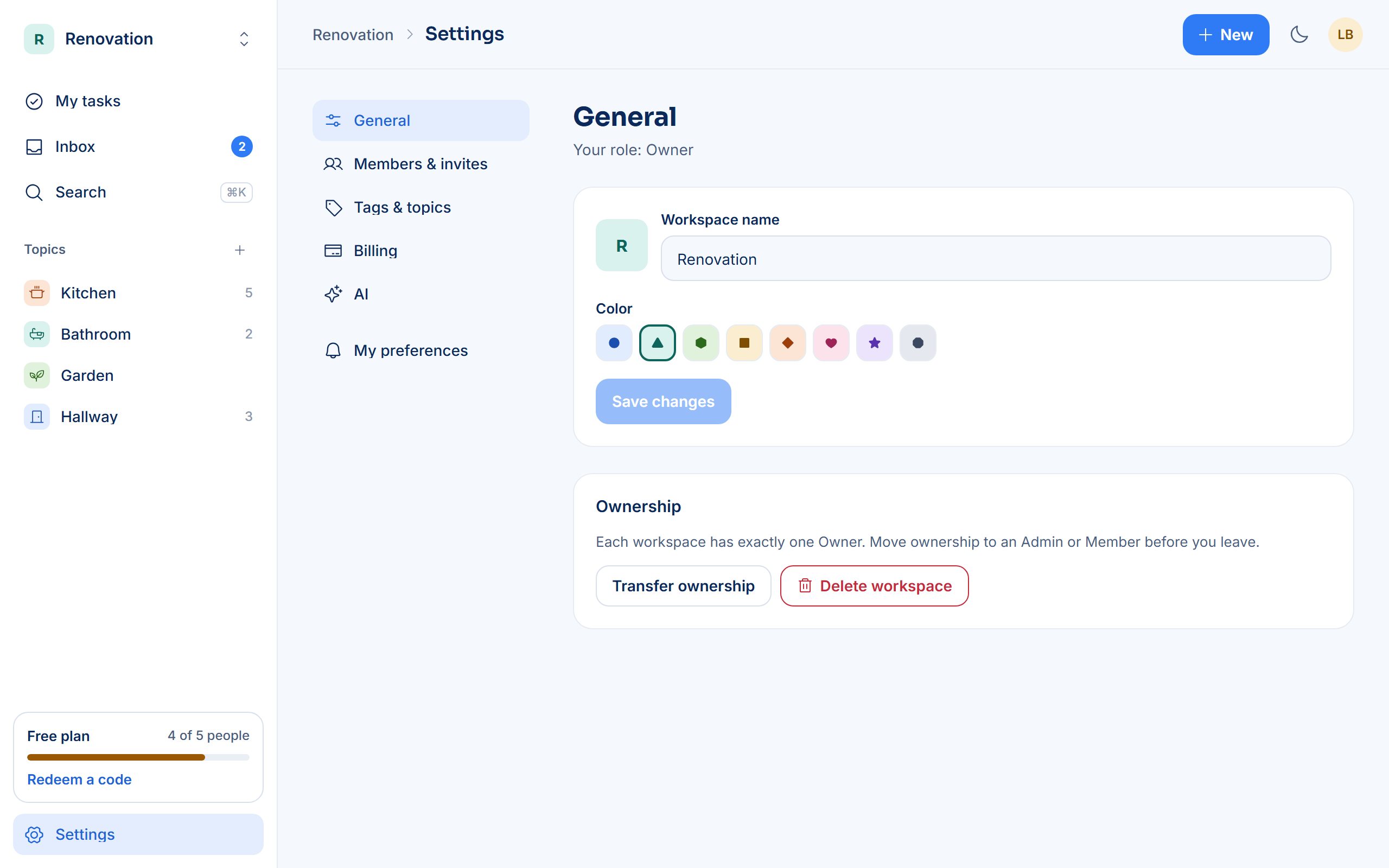
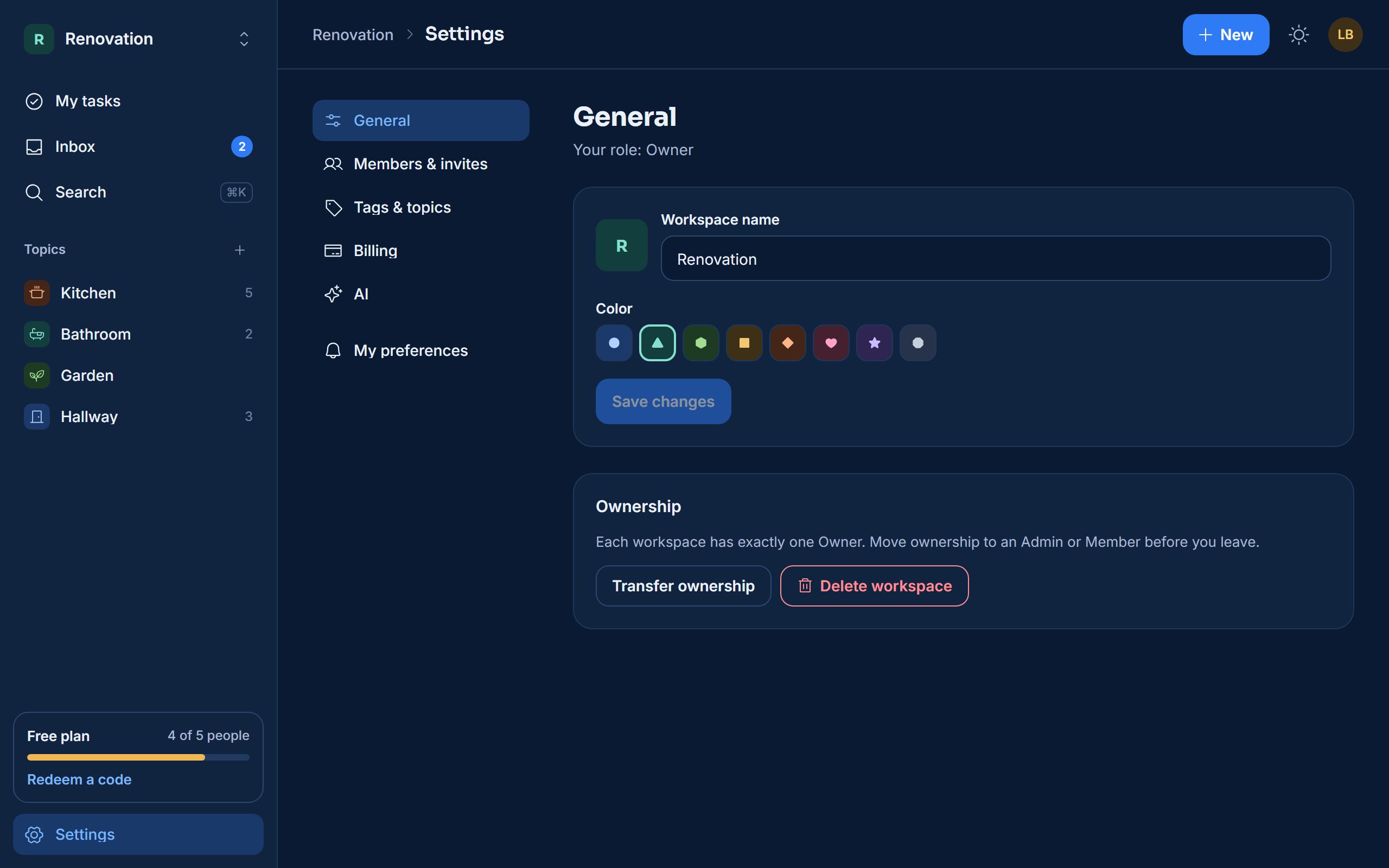
- Settings › General lets the Owner rename the workspace and change its color and icon.
- Transfer ownership to another member before leaving a workspace you own; members can leave at any time from the same page.
- Deleting a workspace needs a typed confirmation and removes all of its content for everyone.
iPhone and Android
- Leave a workspace from its settings. Owners transfer ownership or delete a workspace on the web.
Didn’t find what you were looking for? Check the FAQ or contact us.