

The AI assistant
Summaries of files and voice notes, topic summaries, credits and privacy.
What it does
Documents and images: PDF, Word, Excel and PowerPoint files, text and photos are summarized into a short summary, key points and suggested tasks you can add with one click.
Voice notes: audio and video recordings, WhatsApp voice notes included, are transcribed and summarized. Transcripts are shown under the summary and are searchable.
Topics: on request, a whole topic is summarized into decisions, open and overdue tasks, upcoming due dates and next steps. The summary is kept and marked out of date when the topic changes.
Everything the AI writes is labeled AI-generated and nothing it suggests happens until a person adds it.
Turn it on for a workspace
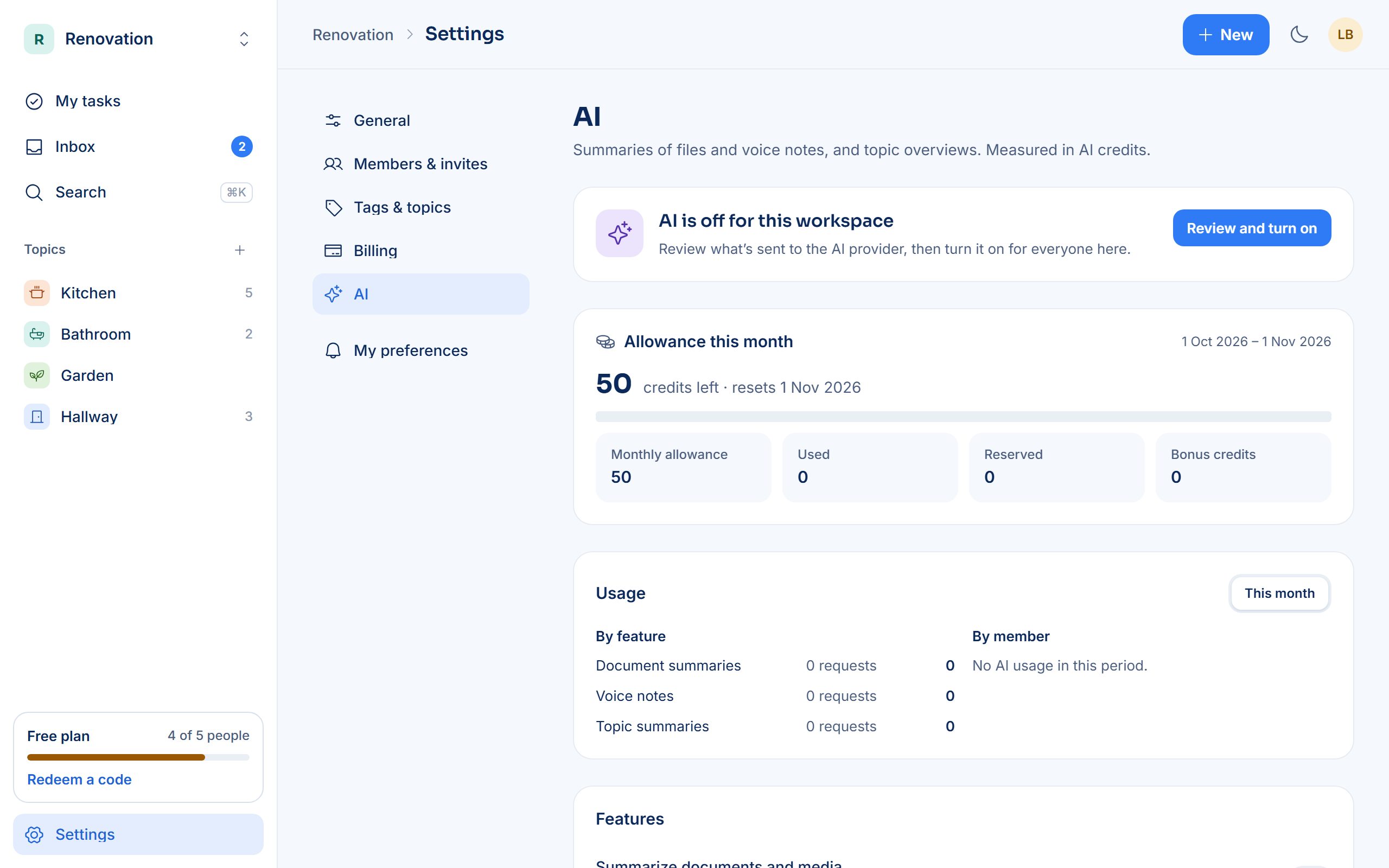
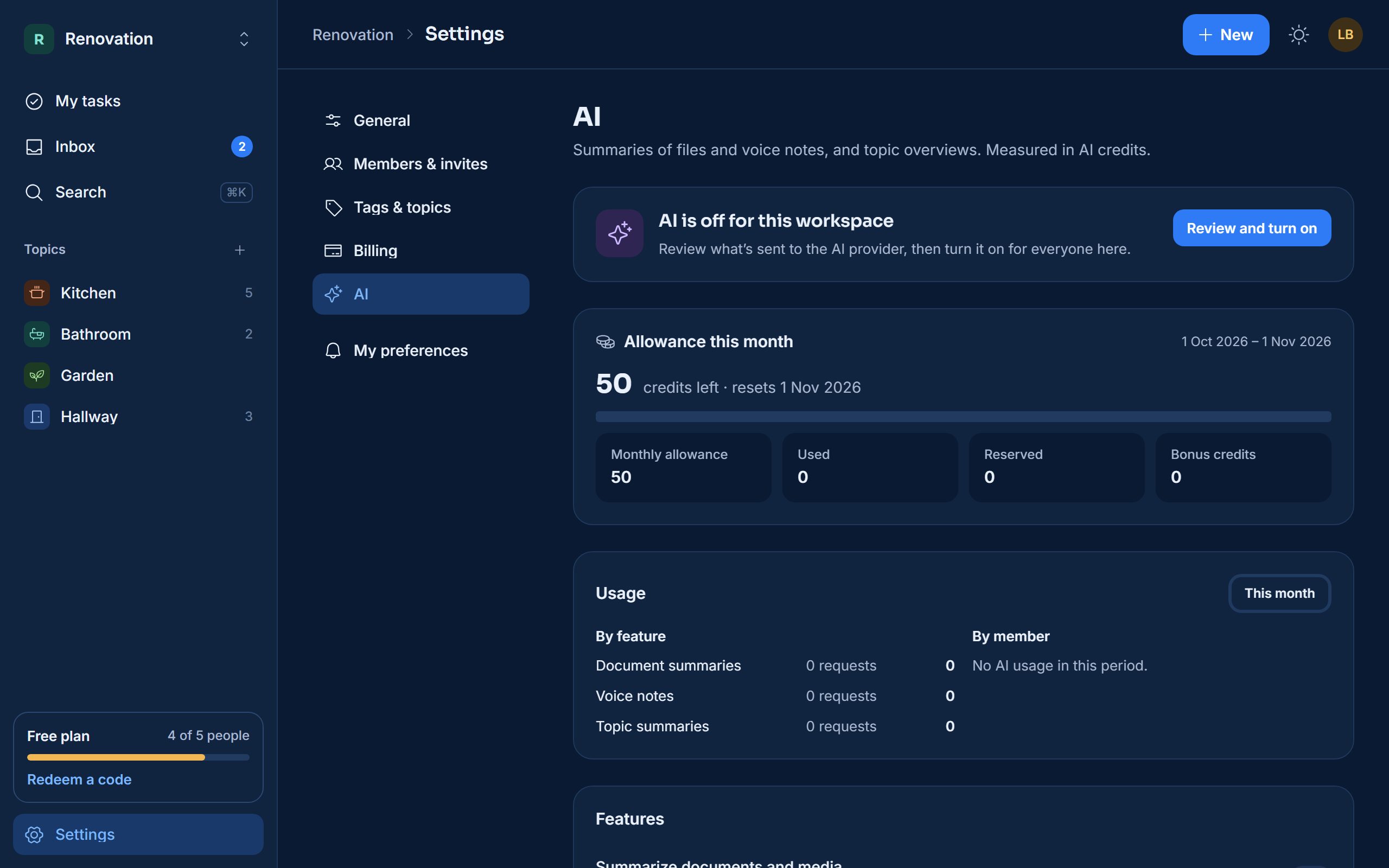
AI is off until a workspace Owner or Admin turns it on. The consent notice names the AI provider and links to the privacy policy.
- Open Settings › AI in the workspace, read the consent and turn on the features you want.
- Choose Automatic (new files are summarized on upload) or On request (people ask for a summary), and watch the monthly allowance on the same page.
- Workspace › settings › AI shows the same switches and the allowance for owners and admins. Everyone can switch AI off for themselves in Profile › AI preferences.
Ask for a summary
- Open an attachment on a task or note and choose Summarize (or Transcribe and summarize for audio). The status shows queued, processing and done; the result appears under the file.
- In a topic, choose Summarize topic from the topic menu.
- In a task or note, tap an attachment’s AI card and choose Summarize. Long recordings keep processing in the background and you get a notification when the summary is ready.
- Record a voice note from the + sheet or a task; it is uploaded and, if AI is on, transcribed.
Credits and privacy
AI usage is measured in credits included in each plan, every month or once. Bigger files use more credits. At 80 % and 100 % owners and admins are notified; when the allowance is used up, new requests wait until it resets or credits are added with a promo code.
Content is processed by the provider named in the consent only when AI is on, is never used to train models, and the Nestly team never sees prompts, files, transcripts or summaries. Summaries and transcripts are deleted with the file they belong to.
Didn’t find what you were looking for? Check the FAQ or contact us.