

Notes
Write rich notes with checklists, images and files, and turn a line into a task.
Write a note
Web app
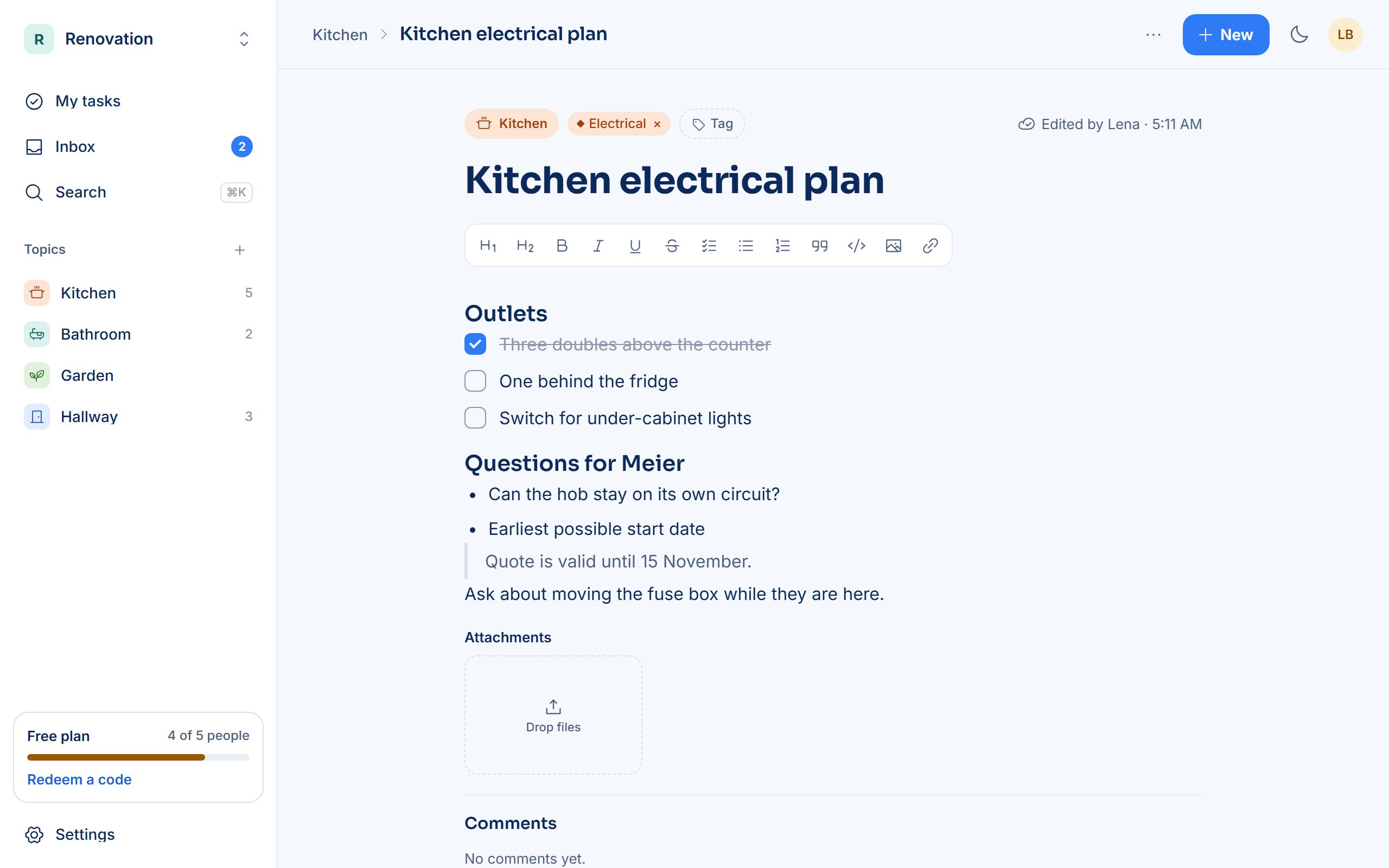
- Click New › Note in a topic, or press N on the keyboard. Give the note a title and start writing; it saves as you type.
- Use the toolbar for headings, bullet lists, checklists, quotes and images. Links get a preview card when the site allows it.
- Add tags and attachments from the fields above the text.
iPhone and Android
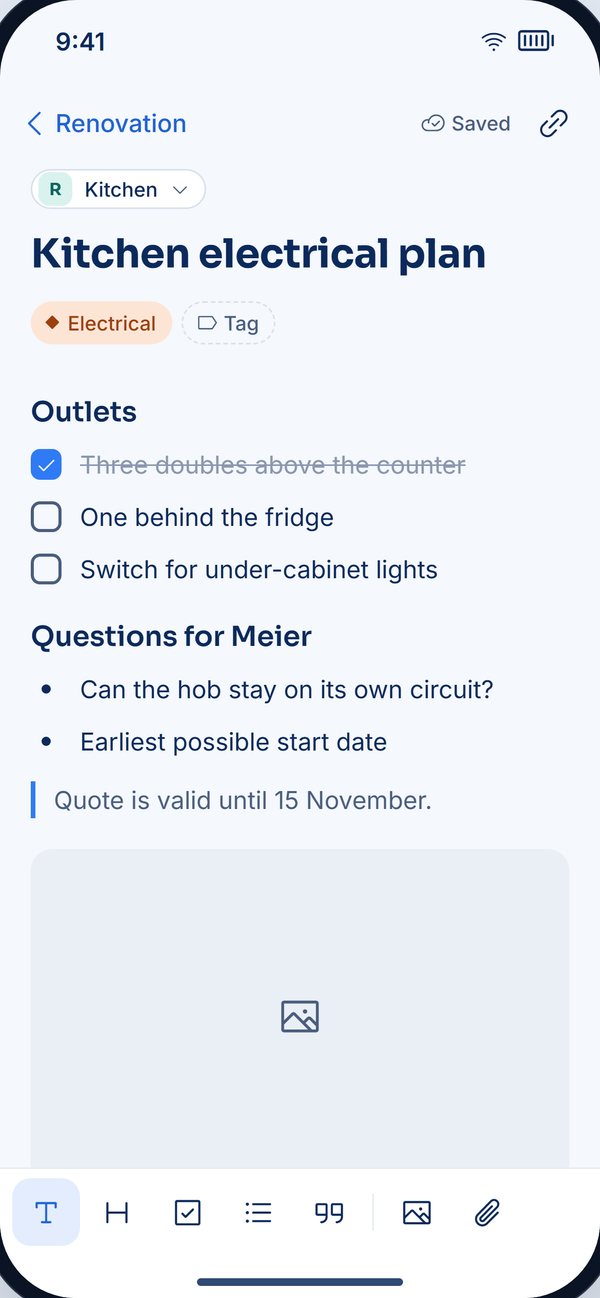
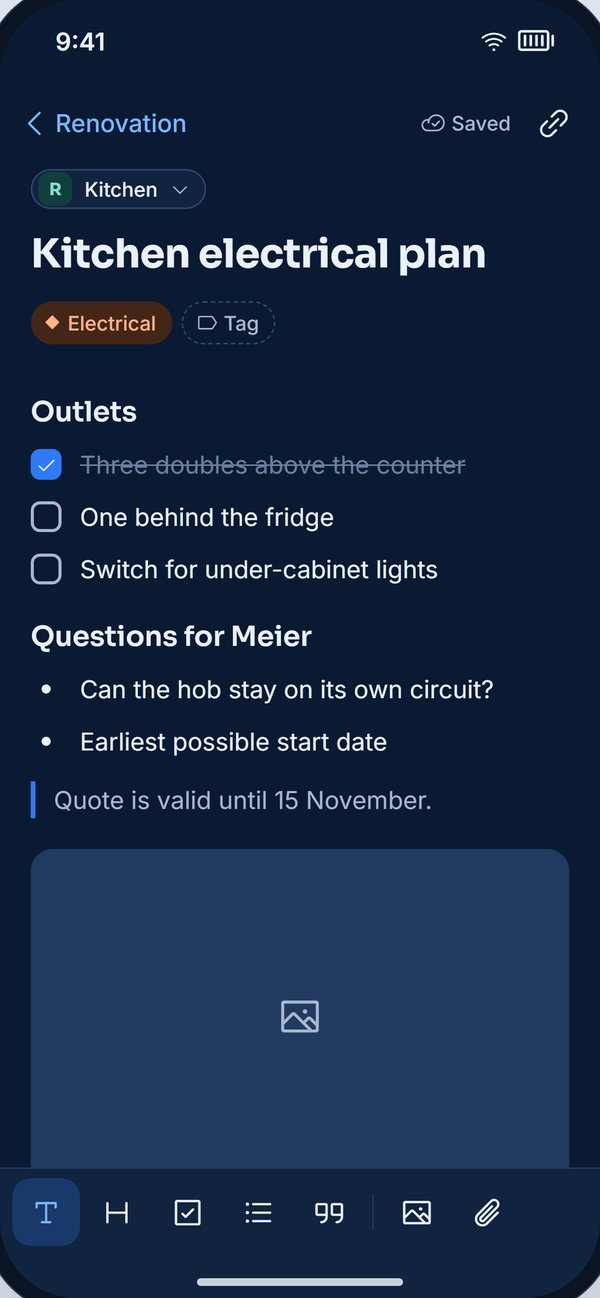
- Tap + › New note, choose the topic and write. The toolbar switches the current line between text, heading, checklist, bullets and quote, and adds photos or files.
- When you are offline the note is saved on the device and uploaded when you reconnect.

Turn a line into a task
Web app
- Select a line in a note and choose Convert to task from the bubble that appears.
- The task is created in the same topic with the line as its title and links back to the note.
iPhone and Android
- Tap a line, then choose Convert to task from the line menu.
Checklists in notes are for quick lists. When something needs an owner, a due date or reminders, make it a task.
Edits and history
Every note shows who edited it last and when. If two people edit the same note at the same time, the app tells you and lets you reload or keep your version. Team and Business workspaces keep a version history of each note.
Didn’t find what you were looking for? Check the FAQ or contact us.