
Tasks, assignments and reminders
Create tasks, assign them, set due dates and let reminders do the chasing.
Create and assign a task
- Click New › Task in a topic, or type in the quick-add box at the top of a list.
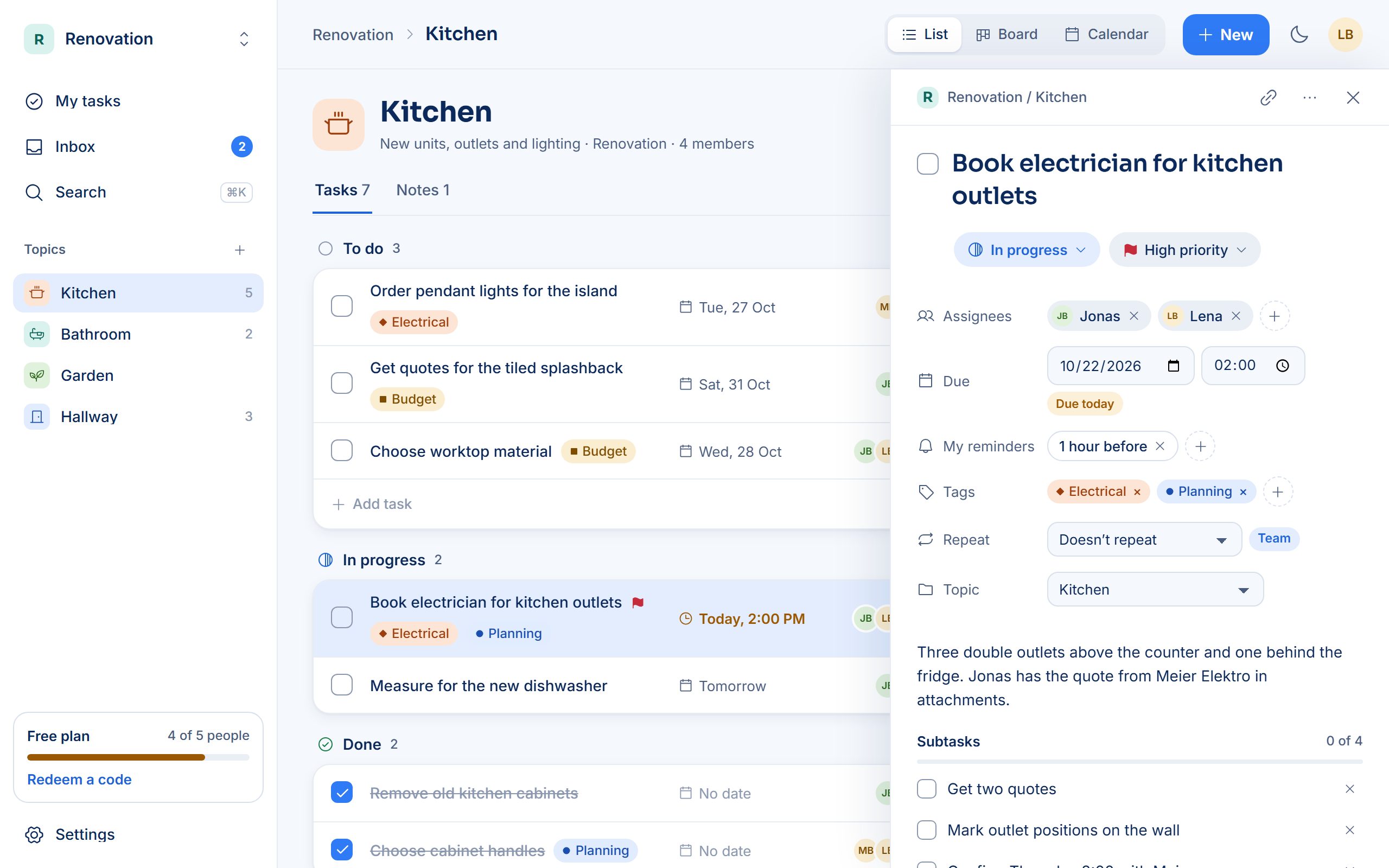
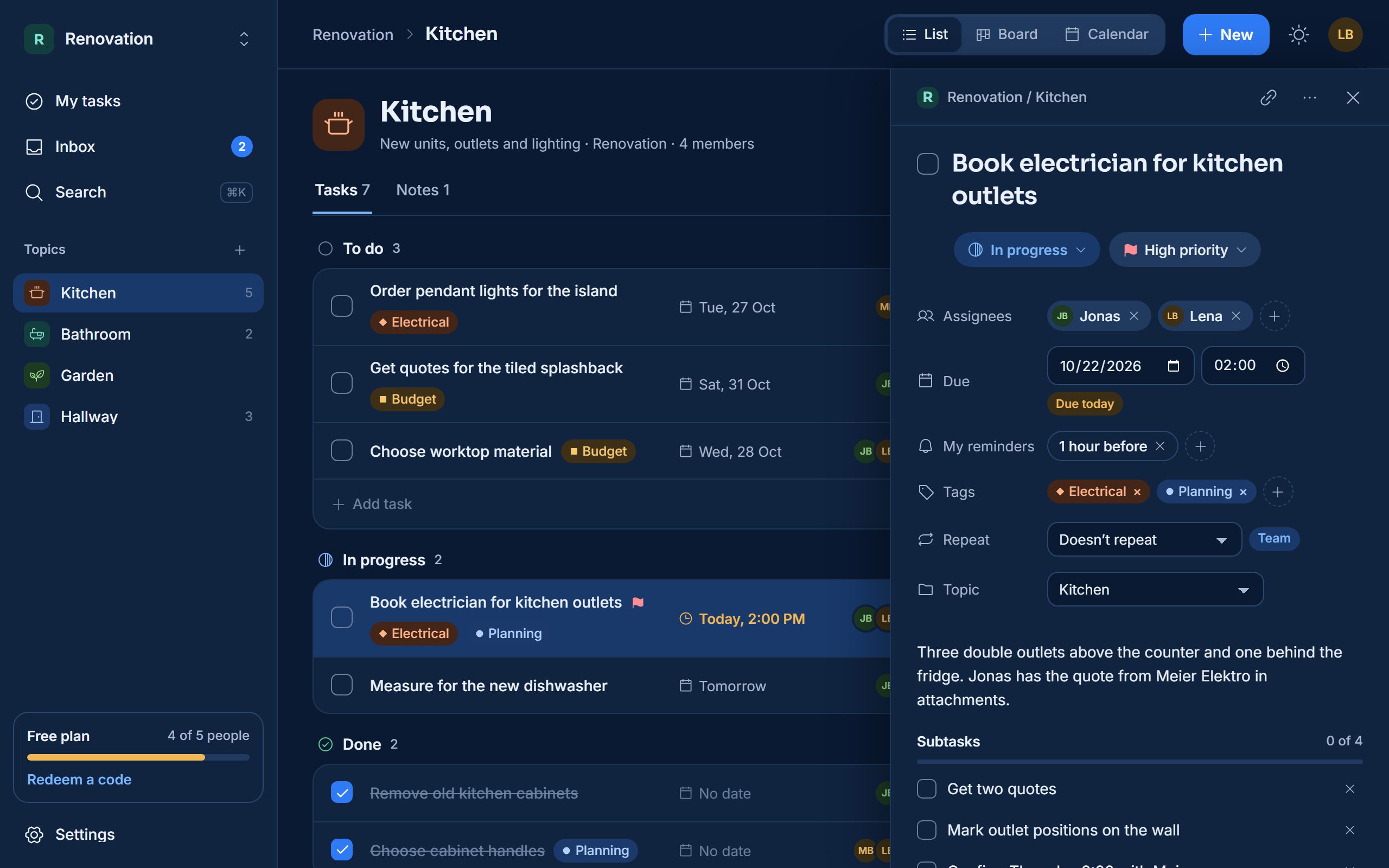
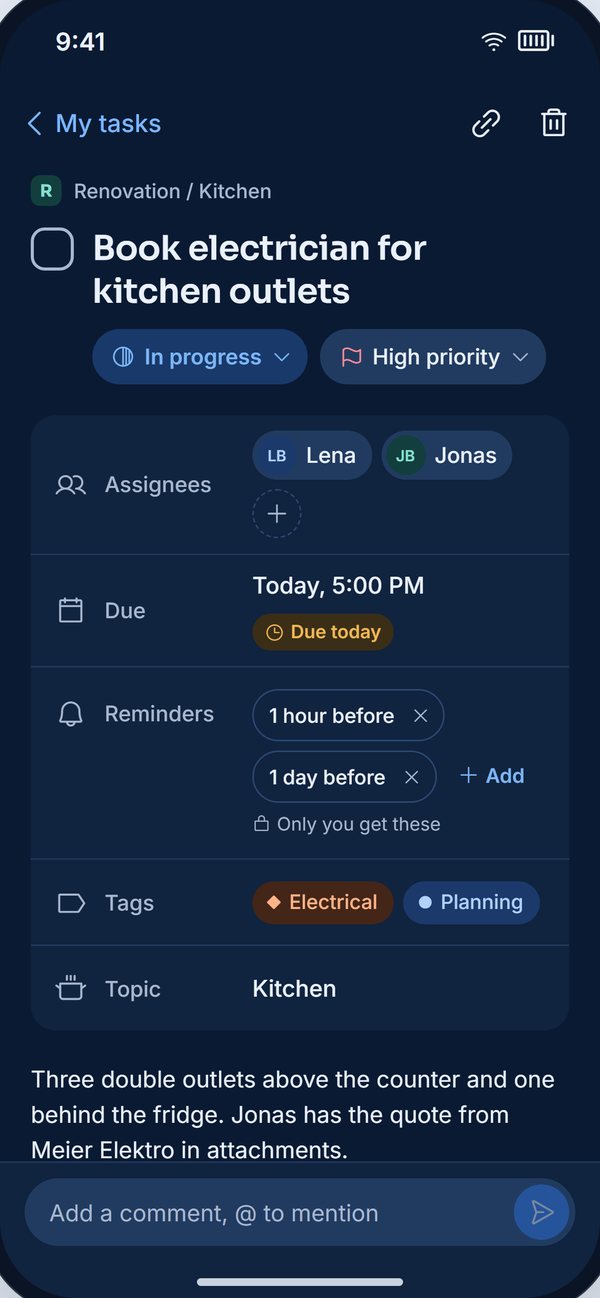
- Open the task to set status (To do, In progress, Done), priority, assignees, a due date and time, tags and a description.
- Add subtasks for the steps, attachments for the paperwork and comments for the discussion. Mention someone with @ to notify them.
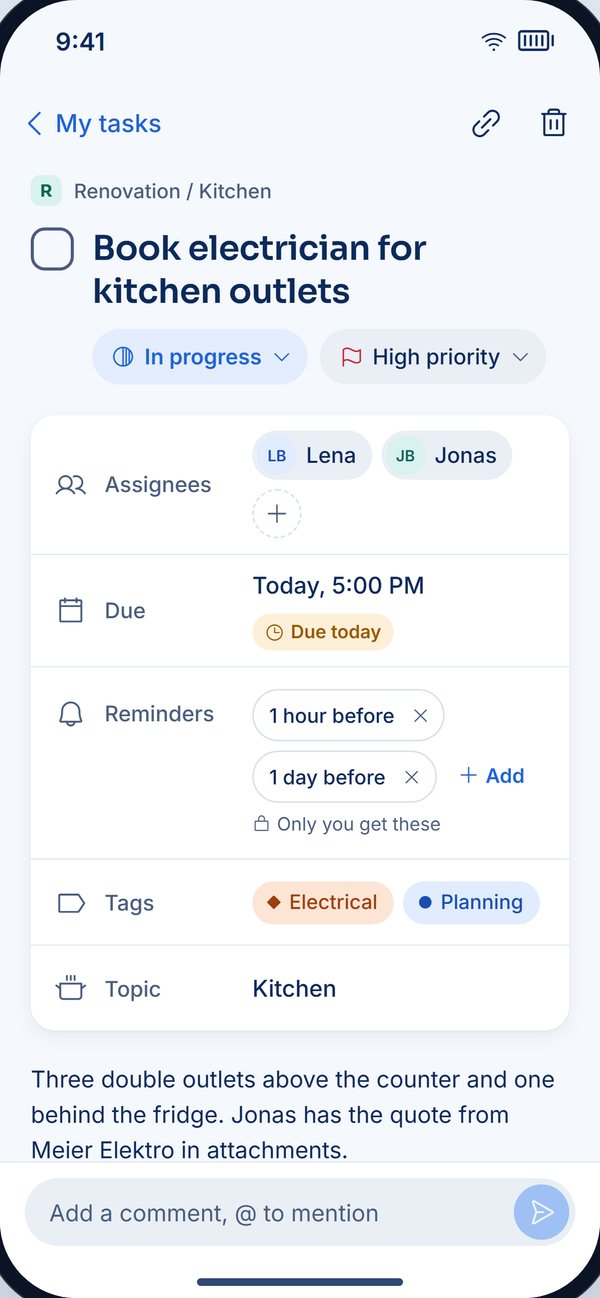
- Tap +, choose Task, type the title and use the chips for topic, tags, assignee, due date and reminder. You can attach a photo or file, or record a voice note, before saving.
- Open a task to change anything later, tick off subtasks and comment.
Reminders
Reminders are personal: everyone sets their own, so the right person hears about a task before it is due. A reminder is relative to the due date, for example 1 hour or 1 day before, or a custom time.
- In the task panel, choose My reminders and pick a preset or a custom offset. Set your default reminder in Settings › Notifications so new assignments get one automatically.
- Tap the reminder chip in a task or in the quick-add sheet. Reminders arrive as push notifications, even during quiet hours.
Free workspaces allow one reminder per task; Team and Business allow several reminders and recurring tasks.
My tasks
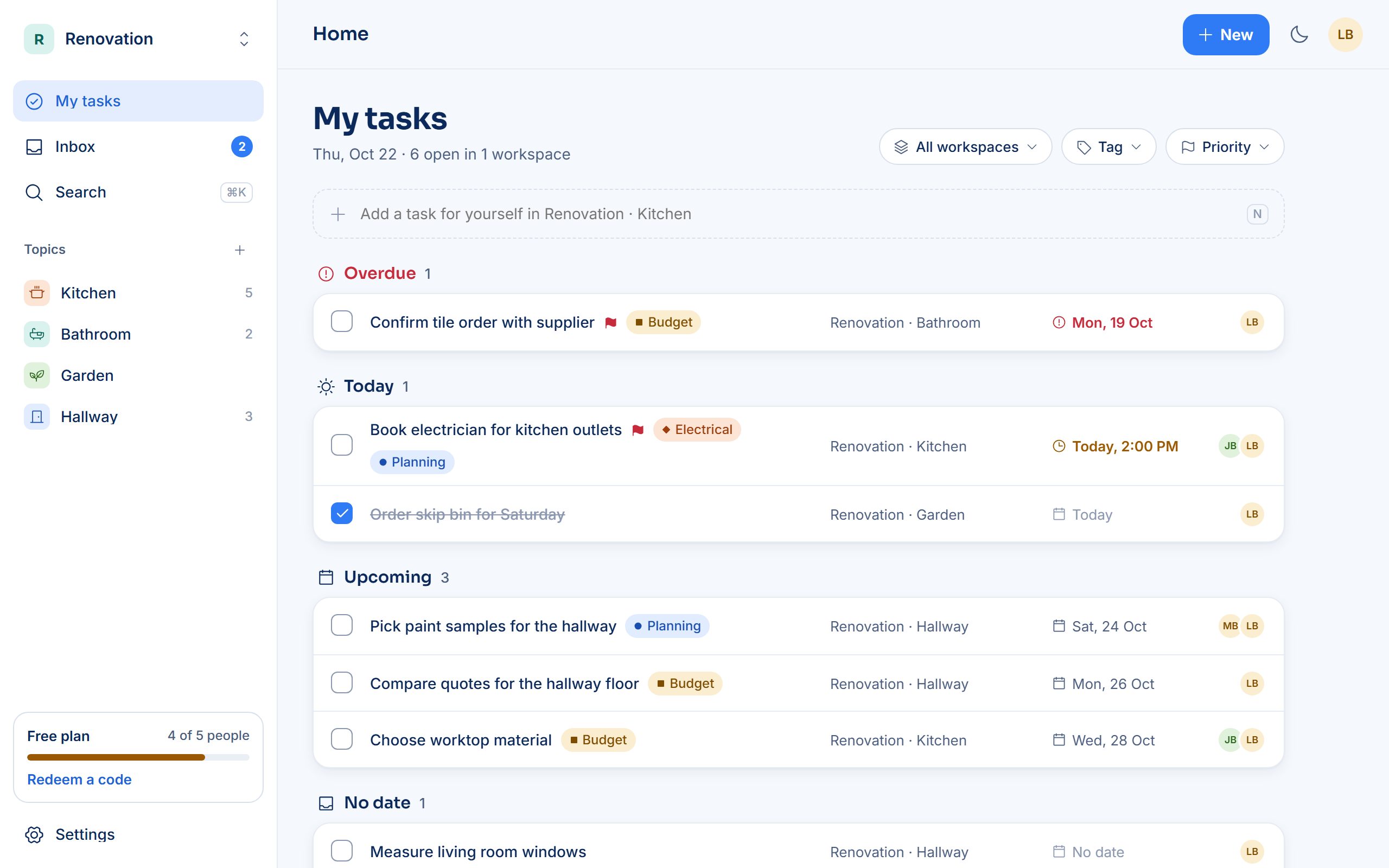
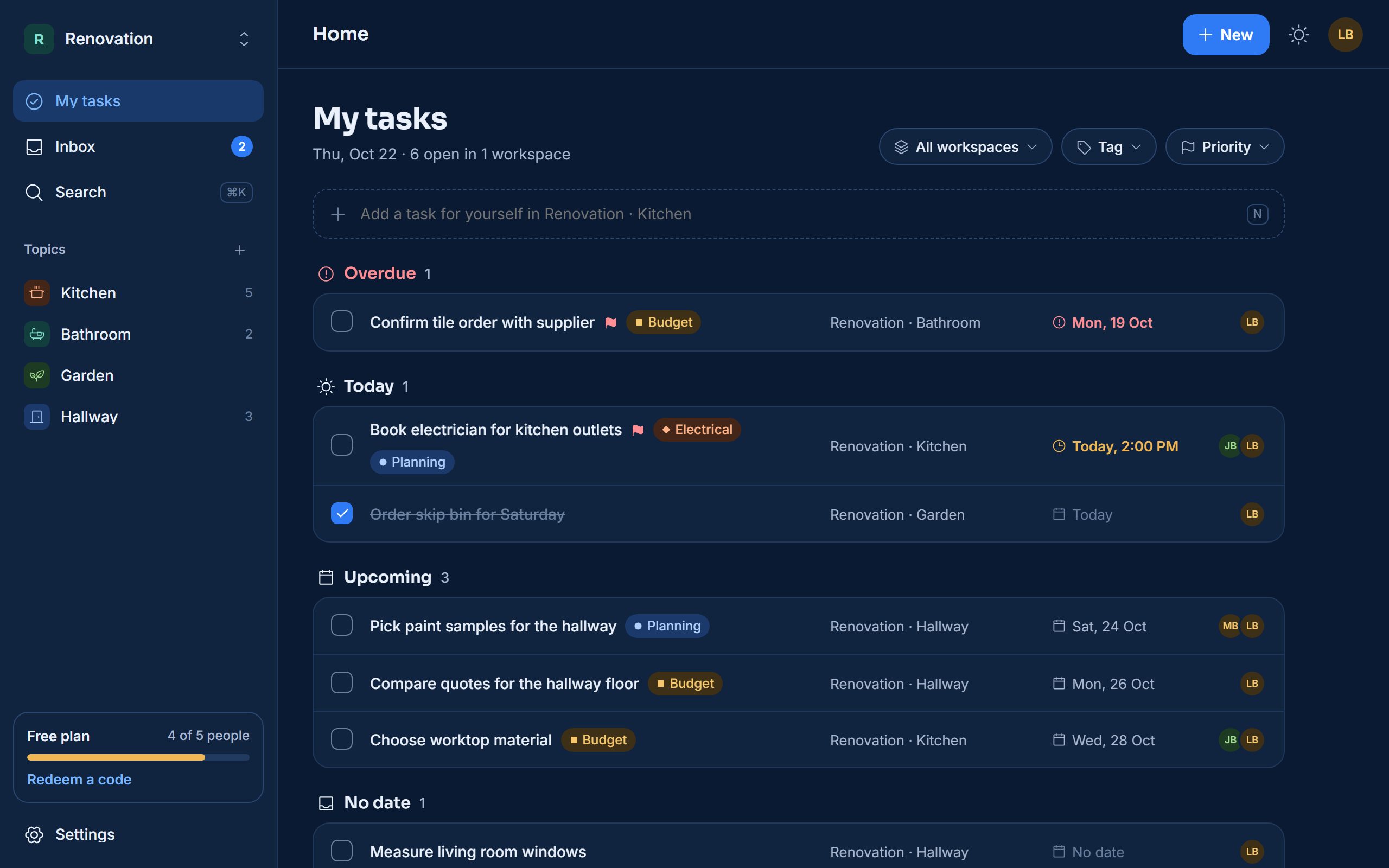
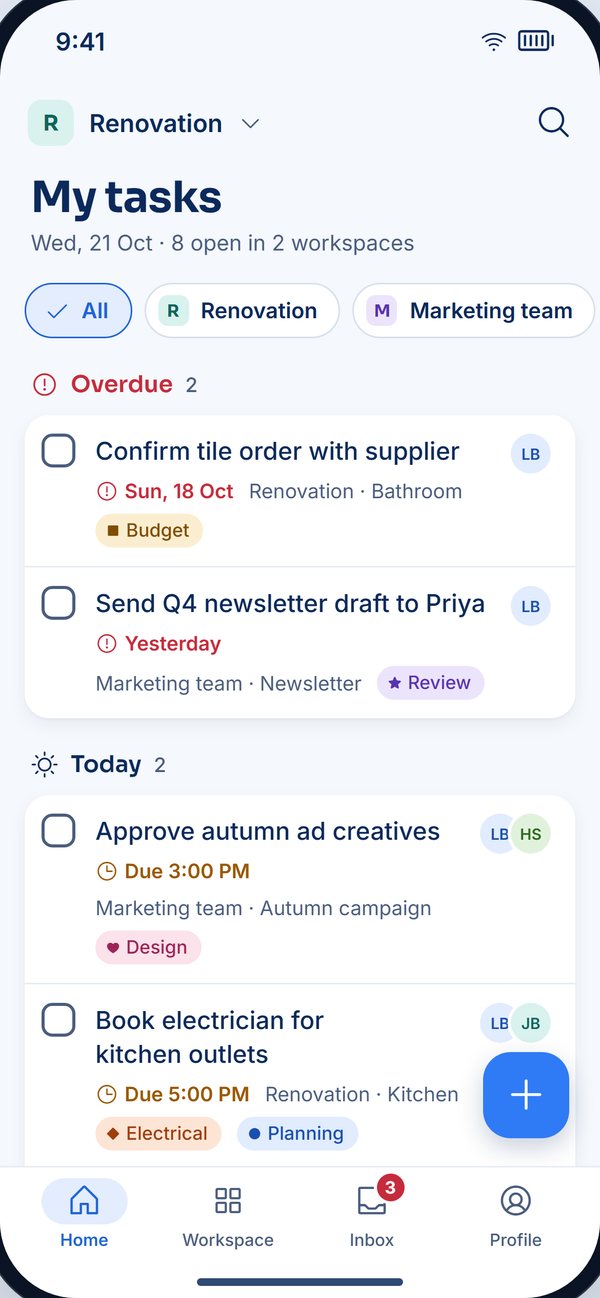
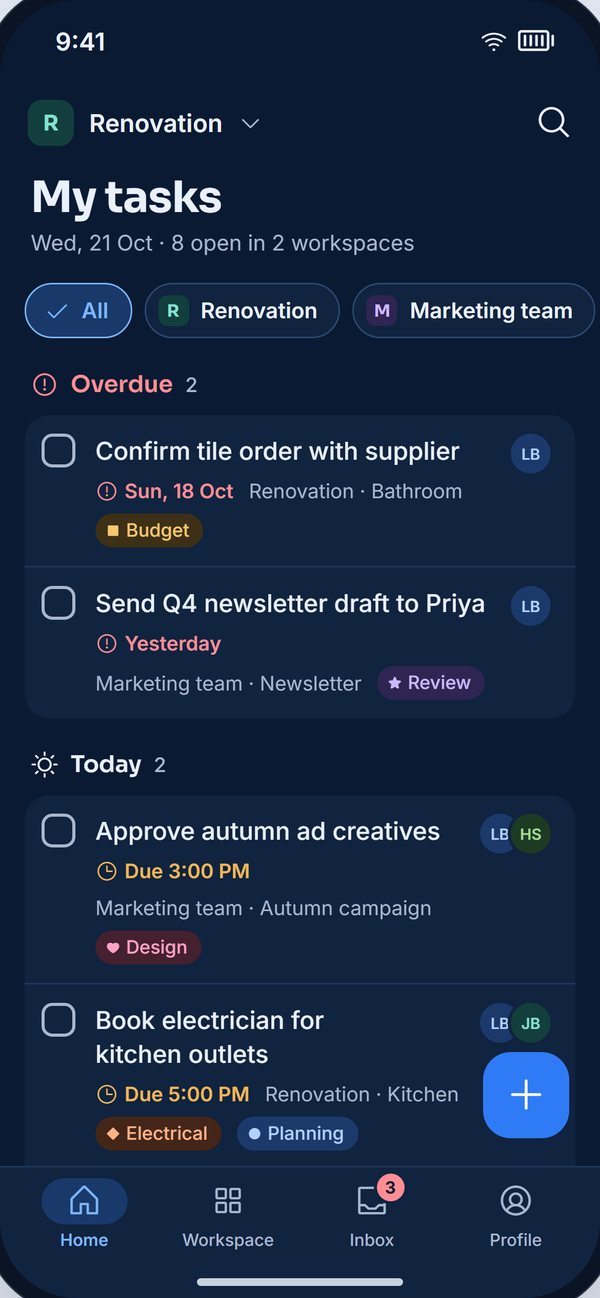
My tasks collects everything assigned to you across all your workspaces, grouped into Overdue, Today, Upcoming and No date.
- Open My tasks from the sidebar. Filter by workspace, and complete a task with the checkbox.
- The Home tab is My tasks. Swipe a task to the right to complete it or to the left to snooze it; undo from the toast if you change your mind.
List, board and calendar views
Every workspace has the list view. Team and Business workspaces add a board grouped by status and a calendar by due date; switch views from the top bar of a topic. On the phone, topics offer list and board.
Didn’t find what you were looking for? Check the FAQ or contact us.